

Budgeting Apps That Stand Out

Budgeting apps can make it easier to see where your money goes, plan for bills, and make steadier progress on savings or debt.
Contents
29 sections
-
What makes a budgeting app stand out
-
Decision rules to choose the right style
-
Budgeting apps: standout options compared
-
How to evaluate budgeting apps before you switch
-
Feature checklist that matters in real life
-
Cost comparison: what to look for (without guessing exact prices)
-
What this looks like with real numbers
-
Scenario 1: Tight month, steady income
-
Scenario 2: Family budget with shared categories
-
Scenario 3: Irregular income (freelance or commission)
-
Timeline-based decision rules: what to prioritize first
-
Under 1 year
-
1 to 3 years
-
3 to 7 years
-
7+ years
-
How to set up a budgeting app in 60 minutes
-
Step 1: Pick your "money map" categories
-
Step 2: Add bills and due dates
-
Step 3: Choose one weekly routine
-
Step 4: Use alerts and rules
-
Common pitfalls and how to avoid them
-
Linking every account and getting overwhelmed
-
Confusing "tracking" with "planning"
-
Ignoring irregular expenses
-
Not reviewing statements for errors
-
Privacy, data, and account security: practical checks
-
When a budgeting app can support borrowing and debt decisions
-
A simple way to choose among standout apps
-
Helpful resources for your overall money system
But “best” depends on how you manage money: Do you want strict categories, a flexible plan, a shared household view, or a hands-on spreadsheet style? This guide compares well-known budgeting apps, explains what to look for, and shows what a realistic monthly plan looks like with real numbers.
What makes a budgeting app stand out
A standout app is not the one with the most features. It is the one you will actually use every week. Before comparing brands, decide which of these approaches fits your habits:
- Zero-based budgeting: Give every dollar a job (bills, groceries, savings, debt, fun). Good for tight cash flow.
- Envelope or category caps: Set spending limits by category and watch them as you spend.
- Tracking and insights: Automatically categorize purchases and show trends. Good if you mainly want awareness.
- Bill planning and cash flow: Focus on upcoming bills, paydays, and avoiding overdrafts.
- Spreadsheet style: Maximum control and customization, but more manual work.
Decision rules to choose the right style
- If you often run low before payday, prioritize cash flow and bill planning.
- If you have irregular income, prioritize zero-based budgeting with a buffer category.
- If you share expenses with a partner or family, prioritize multi-user sharing and clear category rules.
- If you hate manual entry, prioritize reliable bank syncing and good auto-categorization.
- If privacy is your top concern, consider manual entry or limited linking.
Budgeting apps: standout options compared
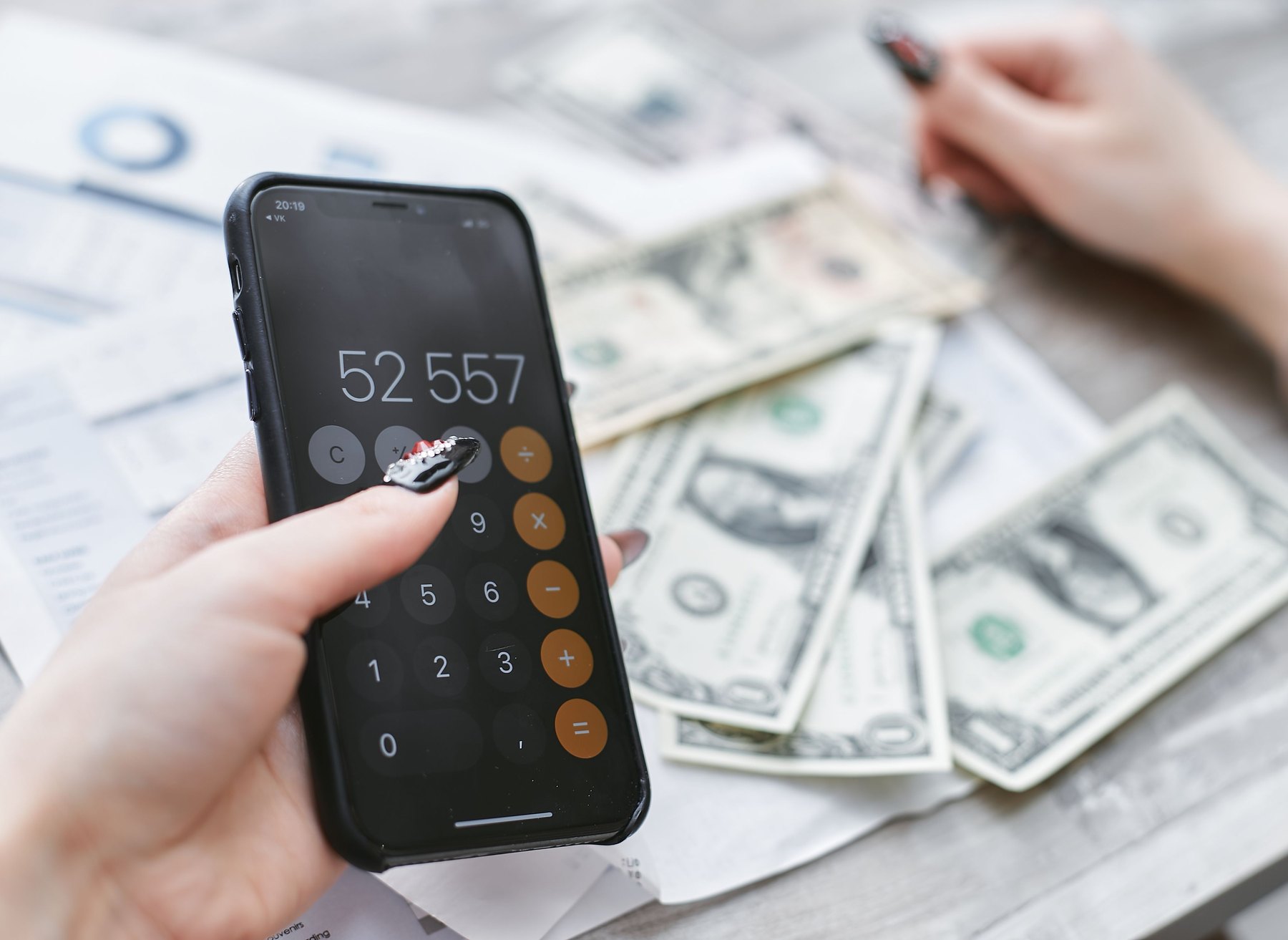
The apps below are widely recognized and take different approaches. Features, pricing, and availability can change, so verify current costs, supported banks, and any trial terms before you commit.
| Option | Best fit | What to compare | Main drawback |
|---|---|---|---|
| YNAB (You Need A Budget) | Hands-on planners who want zero-based budgeting | Learning curve, category workflow, bank sync reliability, sharing | Subscription cost and time to learn the method |
| Monarch Money | Households that want a polished dashboard and collaboration | Multi-user features, rules for categorization, net worth tracking | Subscription cost; depends on account linking quality |
| Rocket Money | People focused on tracking, bills, and spotting subscriptions | Subscription detection, bill alerts, budgeting flexibility | Budgeting can feel lighter than strict zero-based systems |
| Empower Personal Dashboard | Net worth and spending overview, especially with investments | Investment tracking, spending categories, cash flow tools | Budgeting tools may be less granular than dedicated budget apps |
| EveryDollar | Simple zero-based budgeting with a clean interface | Manual vs linked transactions, category setup, ease of use | Some features may require a paid plan; linking varies |
| Goodbudget | Envelope budgeting fans who do not mind manual entry | Envelope structure, sharing, offline friendliness | More manual work; fewer automated insights |
| Copilot Money (iOS) | iPhone users who want strong categorization and design | iOS-only fit, rules, recurring detection, account support | Not available on Android; subscription cost |
| Quicken Simplifi | People who want spending plans and a traditional personal finance feel | Spending plan setup, reporting, linking, bill tracking | Setup takes time; depends on data connections |
How to evaluate budgeting apps before you switch
Most frustration comes from mismatched expectations. Use this checklist to compare apps on the things that actually affect day-to-day use.
Feature checklist that matters in real life
| Category | Questions to ask | Why it matters |
|---|---|---|
| Account linking | Does it support your bank and credit cards? How often does it refresh? Can you fix duplicates? | Unreliable syncing can create extra work and missed transactions. |
| Budget method | Zero-based, envelopes, or tracking only? Can you roll over categories month to month? | The method should match how you make decisions during the month. |
| Cash flow view | Can you see upcoming bills and paydays? Does it warn about low balance periods? | Helps avoid late fees and overdrafts when timing is tight. |
| Debt planning | Can you track payoff progress? Can you model extra payments without changing history? | Useful for staying consistent without guessing. |
| Household sharing | Can two people edit the same budget? Are permissions clear? | Reduces confusion and duplicate categories. |
| Privacy and security | What data is collected? Can you export and delete data? Is multi-factor authentication available? | Budget data can be sensitive. Controls and transparency matter. |
| Export and portability | Can you export to CSV? Can you keep historical data if you cancel? | Makes it easier to switch tools without starting over. |
Cost comparison: what to look for (without guessing exact prices)
- Subscription price and billing cycle: monthly vs annual, and whether annual discounts exist.
- Free tier limits: number of budgets, envelopes, accounts, or devices.
- Add-on services: identity monitoring, bill negotiation, or premium support.
- Opportunity cost: if an app saves you time and prevents a few late fees, it may pay for itself. If you rarely open it, it is just another bill.
What this looks like with real numbers
Below are three sample monthly allocations. They are not “ideal” for everyone. They show how budgeting apps can turn vague goals into categories you can track.
Scenario 1: Tight month, steady income
Net monthly income: $3,200
- Rent and utilities: $1,450
- Groceries: $400
- Transportation (gas, transit, insurance): $350
- Phone and internet: $140
- Minimum debt payments (credit cards, student loans): $300
- Extra debt payment: $150
- Emergency fund: $150
- Medical and prescriptions: $60
- Personal and household: $100
- Entertainment and eating out: $100
Total: $3,200
App setup tip: Use a zero-based method and create a “Next month buffer” category, even if it starts at $0. When you get ahead, that category becomes your stress reducer.
Scenario 2: Family budget with shared categories
Net monthly income: $6,500
- Mortgage or rent: $2,200
- Utilities and internet: $350
- Groceries: $900
- Childcare or school costs: $900
- Transportation (two cars, fuel, insurance): $900
- Health insurance and medical: $350
- Debt payments (minimums): $400
- Sinking funds (car repairs, gifts, annual fees): $300
- Retirement or long-term investing: $700
- Family fun and dining out: $300
Total: $6,500
App setup tip: If two adults spend from the same categories, pick an app with household sharing and set clear rules like “Dining out includes coffee runs” to reduce recategorizing arguments.
Scenario 3: Irregular income (freelance or commission)
Average net monthly income: $4,800 (but varies)
- Must-pay bills (rent, utilities, insurance): $2,000
- Groceries: $450
- Transportation: $350
- Taxes set-aside: $800
- Health costs: $150
- Debt payments: $300
- Emergency fund: $400
- Business expenses (software, supplies): $200
- Flexible spending: $150
Total: $4,800
App setup tip: Build the budget around a “baseline income” you are confident you can cover most months. In higher-income months, prioritize taxes, emergency fund, and sinking funds before increasing flexible categories.
Timeline-based decision rules: what to prioritize first
Budgeting is not only about categories. It is also about matching your plan to your timeline so you do not create new problems while solving old ones.
Under 1 year
- Prioritize cash flow: bill due dates, minimum payments, and a small buffer.
- If you carry credit card balances, compare the interest cost to any savings goal. High APR debt often makes progress harder.
- Use sinking funds for predictable annual costs (car registration, holidays, insurance premiums).
1 to 3 years
- Build a larger emergency fund target, often in the range of 3 to 6 months of essential expenses, depending on job stability.
- Plan for known goals like a car replacement, moving costs, or a wedding using separate categories.
- Consider whether refinancing or consolidating debt could reduce total cost, and compare APR, fees, and repayment terms carefully.
3 to 7 years
- Balance debt payoff with longer-term saving goals. Your budget should show both monthly contributions and progress.
- Track net worth trends if it motivates you, but keep the weekly habit focused on spending and bills.
7+ years
- Automate long-term contributions where possible and use the budget app to protect those contributions from lifestyle creep.
- Review categories annually to reflect changing priorities, family size, and housing or transportation costs.
How to set up a budgeting app in 60 minutes
Step 1: Pick your “money map” categories
- Housing
- Utilities
- Groceries
- Transportation
- Insurance and medical
- Debt payments
- Savings (emergency fund, sinking funds, long-term)
- Personal spending
Keep it simple at first. Too many categories can make you stop using the app.
Step 2: Add bills and due dates
Even if you do not link accounts, list recurring bills with due dates and typical amounts. This is the backbone of cash flow planning.
Step 3: Choose one weekly routine
- Every Friday: review categories, approve transactions, and plan the next 7 days.
- Or every payday: fund categories for bills first, then groceries, then everything else.
Step 4: Use alerts and rules
- Set alerts for low balances in key categories like groceries and gas.
- Create categorization rules for common merchants to reduce cleanup time.
Common pitfalls and how to avoid them
Linking every account and getting overwhelmed
If you have many accounts, start with the ones you use weekly: checking, main credit card, and any loan you are actively paying down. Add the rest later.
Confusing “tracking” with “planning”
Tracking tells you what happened. Planning helps you decide what happens next. If you keep overspending in the same category, switch to a method with category caps or zero-based funding.
Ignoring irregular expenses
Many budgets fail because of predictable surprises. Create sinking funds for car repairs, annual subscriptions, gifts, and medical deductibles if they apply.
Not reviewing statements for errors
Budget apps can miss or miscategorize transactions. Review your bank and card statements regularly and report suspicious activity quickly. For guidance on avoiding and reporting fraud, the FTC has practical resources at consumer.ftc.gov.
Privacy, data, and account security: practical checks
- Use a unique password and turn on multi-factor authentication where available.
- Review what data the app collects and whether it can be deleted or exported.
- If you link accounts, monitor your accounts regularly for unauthorized transactions.
For general consumer protection and complaint options related to financial products, you can also explore the CFPB at consumerfinance.gov.
When a budgeting app can support borrowing and debt decisions
A budget app will not fix a high-cost loan by itself, but it can help you make clearer choices:
- Before taking a loan: model the monthly payment as a category and see what it displaces. If the payment forces you to miss essentials, reconsider the amount or timeline.
- When comparing offers: track the total monthly debt obligations and leave room for variable expenses. Compare APR, fees, and repayment terms across lenders.
- When paying down debt: set a realistic extra payment category and automate it if possible. Track progress monthly, not daily.
A simple way to choose among standout apps
If you want a quick selection process, use this decision matrix:
- Pick YNAB or EveryDollar if you want a structured, plan-first approach and do not mind learning a system.
- Pick Monarch Money if you want a modern dashboard and household collaboration.
- Pick Rocket Money if you want spending visibility and subscription awareness with lighter budgeting.
- Pick Empower Personal Dashboard if you care most about net worth and investment tracking alongside spending.
- Pick Goodbudget if you prefer envelope budgeting and are comfortable with more manual entry.
- Pick Copilot Money if you are on iOS and want strong categorization and a clean interface.
- Pick Quicken Simplifi if you like a traditional personal finance tool with spending plans and reports.
Whichever you choose, the most important feature is consistency: a 10-minute weekly review usually beats a perfect setup you never revisit.
Helpful resources for your overall money system
- Check and monitor your credit reports at AnnualCreditReport.com if you are planning major borrowing or want to verify accuracy.
- Learn about deposit insurance basics for bank accounts at FDIC.gov, especially if you are organizing emergency savings across accounts.


