

Things to Know About Installing a Home Security System Yourself

DIY home security system installation can look simple in a product video, but the real-world decisions – equipment, placement, Wi-Fi reliability, monitoring, and total cost – determine whether it actually protects your home and your budget.
Contents
28 sections
-
Start with a plan: what you want the system to do
-
Map your entry points and high-value areas
-
DIY home security system installation: what to buy first
-
Placement rules that prevent common gaps
-
Tools and supplies checklist
-
Costs to expect: equipment, subscriptions, and hidden add-ons
-
Typical cost categories
-
What this looks like with real numbers
-
DIY vs professional monitoring: how to decide
-
Decision rules
-
Compare popular DIY systems (named examples)
-
Financing and budgeting: pay upfront or spread costs?
-
Step-by-step budgeting approach
-
Payment options to compare
-
Timeline decision rules (how long you will take to pay)
-
Three sample budgets with dollar amounts (and how to phase purchases)
-
Installation steps that reduce false alarms and frustration
-
1) Test before you mount
-
2) Build zones and routines
-
3) Reduce false alarms
-
Privacy, data, and account security settings to review
-
Insurance and documentation: what to keep
-
Troubleshooting: the issues that cause most DIY failures
-
Weak Wi-Fi at the edges of the home
-
Battery maintenance
-
Too many notifications
-
Consumer resources for security and identity protection
-
Quick pre-purchase checklist
Installing a system yourself can reduce upfront labor costs and let you build protection in phases. It can also create hidden expenses if you buy the wrong devices, miss key entry points, or discover your home needs better internet coverage or power backup. This guide walks through what to plan before you buy, what to install first, how to estimate costs with real numbers, and how to think about paying for it without straining your cash flow.
Start with a plan: what you want the system to do
A home security system is not one product. It is a set of devices and services that work together. Before you shop, decide what problems you are solving:
- Deterrence – visible cameras, doorbell camera, yard signs, and lights.
- Detection – door and window sensors, glass-break sensors, motion sensors.
- Verification – cameras that record clearly enough to confirm what happened.
- Response – self-monitoring alerts, professional monitoring, or both.
- Life safety – smoke, CO, and water leak sensors (often separate from intrusion).
Decision rule: If you rent, move often, or want to avoid drilling, prioritize wireless sensors and adhesive mounts. If you own and plan to stay, consider a more robust mix including wired power for cameras where possible for reliability.
Map your entry points and high-value areas
Do a 10-minute walkthrough and write down:
- All exterior doors (front, back, garage entry, patio).
- Accessible windows (ground floor, basement, windows hidden by fences or shrubs).
- Garage door and side door.
- Areas you want on camera (front door, driveway, backyard gate).
- Where you keep valuables (home office, bedroom closet, safe).
Most DIY setups work best when you cover doors first, then add cameras for verification and deterrence.
DIY home security system installation: what to buy first
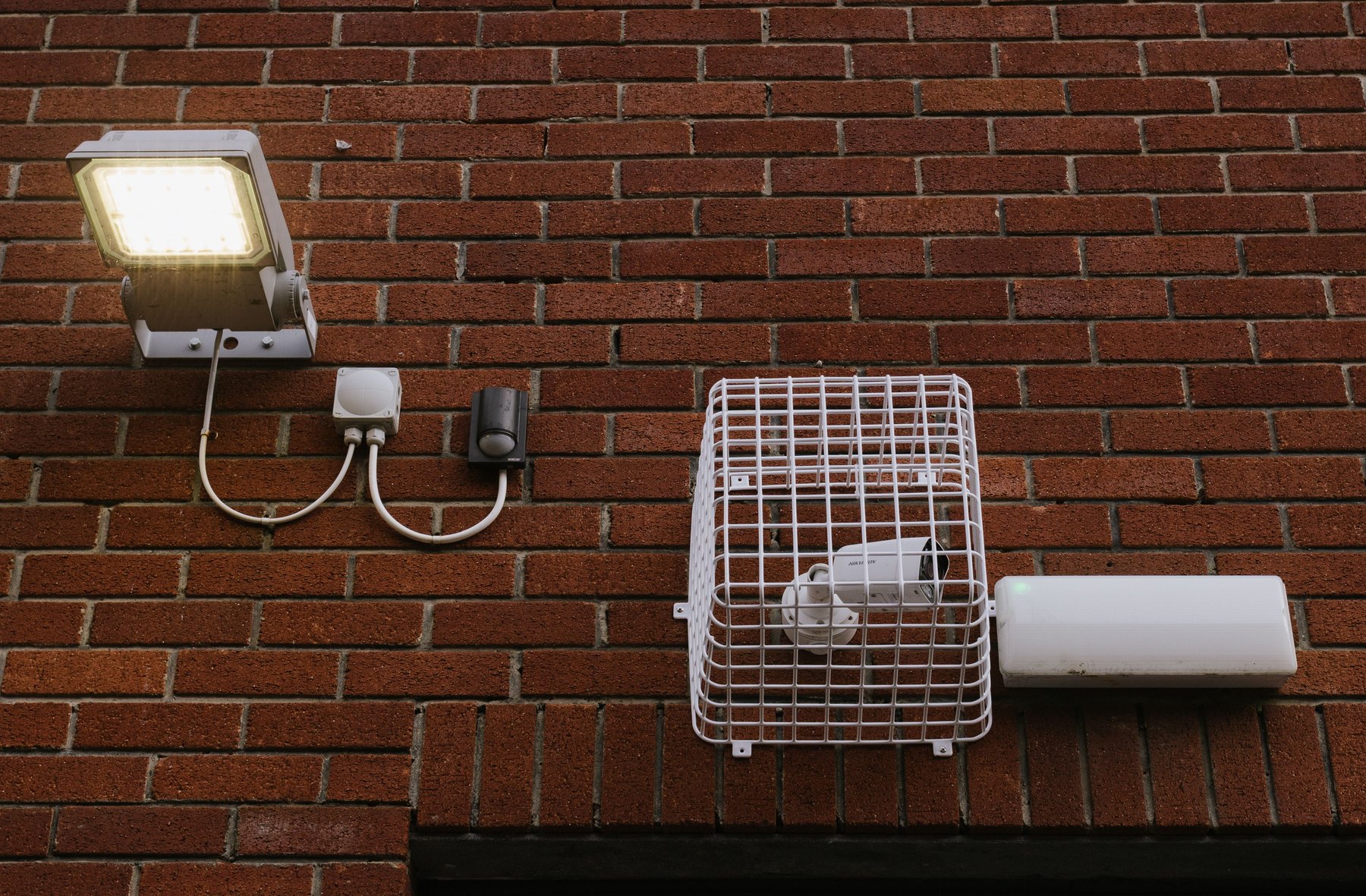
Many people overspend on cameras and underinvest in basics. A balanced starter kit often includes:
- Hub or base station (if your system uses one) and a keypad.
- Door sensors for the main exterior doors.
- Motion sensor for a central hallway or living area.
- Doorbell camera or one exterior camera for the most-used entrance.
- Indoor siren (sometimes built into the base station).
Placement rules that prevent common gaps
- Door sensors: mount on the door and frame with a small gap, test the alignment before sticking permanently.
- Motion sensors: aim across a room, not directly at a window or HVAC vent; avoid pointing at stairs if pets roam.
- Cameras: mount high enough to reduce tampering but low enough for faces; avoid pointing at bright light sources that wash out the image.
- Wi-Fi cameras: check signal strength at the mounting spot before you drill. If the signal is weak, plan for a mesh node or a wired option.
Tools and supplies checklist
- Drill and bits (for exterior mounts)
- Screwdriver set
- Stud finder (for heavier mounts)
- Level and measuring tape
- Outdoor-rated screws and anchors
- Weatherproof silicone (for exterior cable holes)
- Extra adhesive strips (for sensors)
- Zip ties or cable clips
Costs to expect: equipment, subscriptions, and hidden add-ons
DIY can be budget-friendly, but the total cost depends on how many entry points you cover and whether you pay for cloud storage or professional monitoring.
Typical cost categories
- Upfront equipment – sensors, cameras, hub, keypad, mounts.
- Monthly fees – cloud video storage, professional monitoring, cellular backup.
- Network upgrades – mesh Wi-Fi, better router, extra access point.
- Power backup – UPS for router/modem, battery-backed base station.
- Installation supplies – anchors, sealant, cable management.
| Cost item | Why it matters | What to check before buying | Budget tip |
|---|---|---|---|
| Entry sensors | Core detection for doors and windows | How many doors and accessible windows you need covered | Start with doors, then add windows over time |
| Cameras and doorbell camera | Verification and deterrence | Night vision, field of view, local vs cloud storage | Prioritize one strong exterior view first |
| Monitoring plan | Professional response and redundancy | Contract terms, cancellation, cellular backup, dispatch policies | Compare month-to-month vs annual pricing |
| Cloud storage | Access to recordings after an event | Retention period, number of cameras included, download options | Use local storage where available to reduce monthly cost |
| Wi-Fi upgrades | Prevents dropouts and missed alerts | Signal strength at camera locations | Mesh node may solve coverage cheaper than replacing everything |
| Power backup | Keeps alerts working during outages | Battery runtime for base station and internet gear | Start with a UPS for modem/router |
What this looks like with real numbers
Prices vary by brand, sales, and how many devices you need, so use these as planning examples and verify current pricing and fees before you buy.
- Scenario A: Apartment starter setup (about $250 to $600 upfront)
- $180: hub + keypad bundle
- $60: 3 door sensors
- $60: 1 motion sensor
- $120: doorbell camera or one indoor camera
- $30: mounts and adhesive extras
- Total: $450
- Scenario B: Small house basics (about $600 to $1,200 upfront)
- $250: hub + keypad + siren bundle
- $140: 6 door/window sensors
- $70: 1 glass-break sensor
- $200: 2 exterior cameras
- $150: mesh Wi-Fi node (if needed)
- Total: $810
- Scenario C: Larger home with redundancy (about $1,200 to $2,500 upfront)
- $350: hub + keypad + extra siren
- $250: 10 sensors (doors and key windows)
- $300: 3 exterior cameras
- $200: doorbell camera
- $250: mesh Wi-Fi kit or upgraded router
- $150: UPS for modem/router
- Total: $1,500
Monthly costs can range from $0 (self-monitoring with local storage) to a recurring fee for cloud storage and/or professional monitoring. Compare what is included, how many cameras are covered, and whether cellular backup costs extra.
DIY vs professional monitoring: how to decide
Monitoring is one of the biggest ongoing cost choices. It also affects how you respond when you are asleep, traveling, or unable to check your phone.
| Option | Best fit | What to compare | Main drawback |
|---|---|---|---|
| Self-monitoring (no subscription) | Budget-focused households that can respond quickly | App reliability, alert speed, local recording | You are responsible for response every time |
| Cloud storage subscription | People who want recordings without full monitoring | Retention days, camera limits, download options | Ongoing fee and reliance on internet |
| Professional monitoring | Frequent travelers, heavy sleepers, higher-risk areas | Dispatch policies, false alarm handling, cancellation terms | Monthly cost and possible contract requirements |
| Professional monitoring + cellular backup | Homes with unreliable internet or power outages | Cellular included or add-on, battery runtime | Higher monthly cost |
Decision rules
- If you often miss notifications, consider professional monitoring or at least loud sirens and strong lighting.
- If your internet goes down regularly, prioritize cellular backup for the alarm hub and a UPS for the modem/router.
- If you mainly want package and visitor visibility, a doorbell camera plus good exterior lighting may do most of the job.
Compare popular DIY systems (named examples)
DIY systems vary in how they handle monitoring, video storage, smart home integrations, and long-term costs. These are recognizable options many shoppers compare. Availability, features, and pricing can change, so verify current plan details and device compatibility before purchasing.
| Option | Best fit | What to compare | Main drawback |
|---|---|---|---|
| Ring Alarm | Households that want a broad device ecosystem | Monitoring plan terms, camera storage, integration needs | Many features depend on subscriptions |
| SimpliSafe | People who want a straightforward DIY alarm kit | Monitoring tiers, sensor variety, cellular backup options | Costs can rise with add-ons and higher plan tiers |
| Abode | Smart home users who want flexible integrations | Compatibility with your devices, monitoring options | Setup can be more technical depending on integrations |
| Wyze | Budget-focused camera-first setups | Camera reliability, storage options, alert quality | May require more tinkering to match full alarm systems |
| Arlo | People prioritizing camera quality and placement flexibility | Battery life, cloud storage costs, local storage support | Higher total cost if you add multiple cameras and storage |
| Google Nest (Nest Cam, Nest Doorbell) | Homes already using Google Home | Subscription needs, camera features, household accounts | Some features depend on paid plans |
Financing and budgeting: pay upfront or spread costs?
Security equipment is a classic example of a purchase that can expand. A budget plan helps you avoid buying too much too fast or putting the cost on expensive debt.
Step-by-step budgeting approach
- Set a maximum all-in first-year budget (equipment + subscriptions + Wi-Fi upgrades).
- Build a Phase 1 list (doors, one motion sensor, one camera).
- Build a Phase 2 list (additional windows, extra cameras, smoke/CO, water leak sensors).
- Estimate monthly costs and decide whether you will keep a subscription year-round.
Payment options to compare
- Cash: simplest, avoids interest, but can reduce your emergency fund.
- Credit card: may offer rewards or a promotional APR, but interest can be expensive if you carry a balance. Compare APR and any balance transfer fees if you plan to move the balance.
- Buy now, pay later (BNPL): can spread payments, but late fees and payment scheduling can be risks. Confirm the total cost and whether it reports to credit bureaus.
- Personal loan: fixed payments can help with larger projects, but compare APR, origination fees, and term length. Borrow only what you need and avoid extending payments far beyond the useful life of the devices.
- Home equity loan or HELOC: may offer lower rates for larger home projects, but your home is collateral. This is usually more relevant for major security upgrades like hardwired cameras, lighting, or integrated systems.
Timeline decision rules (how long you will take to pay)
- Under 1 year: Favor cash, a short payoff plan, or a low-cost promotional APR you can realistically pay off before it ends.
- 1 to 3 years: Consider fixed-payment options if the monthly payment fits comfortably and total interest is reasonable. Compare total cost, not just the monthly payment.
- 3 to 7 years: Be cautious. Many devices may need replacement or upgrades before you finish paying. If you finance, keep the term shorter than the expected useful life.
- 7+ years: Usually a mismatch for DIY security equipment. Long terms can increase total interest and outlast the technology.
Three sample budgets with dollar amounts (and how to phase purchases)
- Budget 1: $600 total for the first year
- $450 equipment (Phase 1)
- $0 monthly subscription (self-monitoring)
- $150 reserved for Wi-Fi or mounts
- Total: $600
- Budget 2: $1,200 total for the first year
- $850 equipment (Phase 1 + a few Phase 2 items)
- $25 per month subscription for 12 months = $300
- $50 supplies and replacements
- Total: $1,200
- Budget 3: $2,400 total for the first year
- $1,600 equipment (more cameras, more sensors, UPS)
- $50 per month monitoring/storage for 12 months = $600
- $200 network upgrades
- Total: $2,400
Installation steps that reduce false alarms and frustration
1) Test before you mount
- Pair every device in the app first.
- Walk-test motion sensors and check camera live view at the planned location.
- Confirm the system can send alerts over both Wi-Fi and cellular (if included).
2) Build zones and routines
- Create separate zones for doors, windows, and interior motion so you can troubleshoot quickly.
- Set entry and exit delays that match how you actually move through the home.
- Use schedules for arming at night if your household routine is consistent.
3) Reduce false alarms
- Keep motion sensors away from curtains, ceiling fans, and heat sources.
- Use pet settings if you have animals, and test with normal pet behavior.
- Secure loose doors and windows that rattle in wind.
Privacy, data, and account security settings to review
DIY systems often depend on apps and cloud services. A few settings can meaningfully reduce risk:
- Use strong, unique passwords and enable multi-factor authentication if available.
- Review camera sharing settings and limit guest access.
- Check video retention and download options if you want to keep important clips.
- Update firmware for cameras, hubs, and routers.
Insurance and documentation: what to keep
If you want to document your setup for your own records or for potential insurance conversations, keep:
- Receipts and serial numbers for major devices.
- A simple device list with install dates.
- Photos of camera coverage areas and sensor placement.
Some insurers may offer discounts for certain monitored systems, but eligibility and savings vary. Ask what documentation they need and whether professional monitoring is required.
Troubleshooting: the issues that cause most DIY failures
Weak Wi-Fi at the edges of the home
- Run a speed test near the camera location.
- Move the router higher and more central.
- Add a mesh node or wired access point if needed.
Battery maintenance
- Set calendar reminders to check batteries every 3 to 6 months.
- Keep spares for sensors and cameras that use proprietary packs.
Too many notifications
- Turn on person detection where available.
- Adjust motion zones to exclude sidewalks and busy streets.
- Use separate notification settings for daytime vs nighttime.
Consumer resources for security and identity protection
If you are thinking about broader household safety and fraud prevention alongside physical security, these resources can help you plan and respond:
- FTC consumer guidance on scams and identity theft
- CFPB resources on managing financial products and complaints
- AnnualCreditReport.com to check your credit reports
Quick pre-purchase checklist
- Count doors and accessible windows you will cover in Phase 1.
- Decide: self-monitoring, cloud storage, professional monitoring, or a mix.
- Check Wi-Fi strength where cameras will go.
- Confirm cancellation terms and total monthly costs if you subscribe.
- Plan for power backup if outages are common.
- Set a first-year budget that includes supplies and network upgrades.
A well-planned DIY installation can be a practical way to improve home security while controlling costs. The key is to treat it like a small project: define coverage goals, buy in phases, test before mounting, and compare ongoing fees the same way you would compare any other recurring bill.


