

How to Setup a VPN on Any Device

Knowing how to setup a VPN can help you protect sensitive information when you bank, shop, or check loan accounts on public Wi-Fi.
Contents
35 sections
-
What a VPN does (and what it does not)
-
What a VPN can help with
-
What a VPN will not fix
-
When a VPN matters most for personal finance
-
Quick decision rule
-
How to setup a VPN: pick the right type for your device
-
What to compare when choosing a VPN provider
-
Provider checklist
-
Named VPN options to compare (examples)
-
Step by step: setup on iPhone and iPad (iOS)
-
Option A: Use the provider app (simplest)
-
Option B: Manual setup (when you have specific settings)
-
Step by step: setup on Android
-
Option A: Use the provider app
-
Option B: Manual VPN in Android settings
-
Step by step: setup on Windows 10 and Windows 11
-
Option A: Use the provider app
-
Option B: Add a VPN connection in Windows settings
-
Step by step: setup on Mac (macOS)
-
Option A: Use the provider app
-
Option B: Add a VPN in macOS network settings
-
Step by step: setup on a router (whole-home VPN)
-
Before you start: confirm compatibility
-
General router setup steps (varies by model)
-
Practical tip for households
-
How to test if your VPN is working
-
Common VPN problems and fixes
-
VPN connects but the internet is slow
-
Banking site blocks access or triggers extra verification
-
VPN drops on mobile
-
Cost planning: what VPN spending looks like with real numbers
-
Decision rules by timeline
-
Security habits that pair well with a VPN
-
Helpful resources for identity and account protection
-
Final setup checklist
A VPN (virtual private network) encrypts your internet traffic between your device and a VPN server. That can reduce the risk of someone intercepting data on unsecured networks, and it can also help limit tracking on shared connections. A VPN is not a cure all for fraud, and it will not fix weak passwords or unsafe websites, but it can be a practical layer of protection for everyday money tasks.
What a VPN does (and what it does not)
Before you install anything, it helps to know what you are buying and what problems it actually solves.
What a VPN can help with
- Public Wi-Fi safety: Encrypts traffic on coffee shop, airport, and hotel networks.
- Privacy on shared networks: Makes it harder for others on the same network to see what you are doing.
- Reducing some tracking: Your internet provider sees less detail about your browsing content, though it can still see you are using a VPN.
What a VPN will not fix
- Phishing and scams: If you enter your login on a fake site, a VPN cannot stop that.
- Weak passwords: Use a password manager and multi factor authentication for financial accounts.
- Malware: A VPN does not replace antivirus or safe download habits.
- Bad credit decisions: A VPN protects data in transit, not your borrowing choices.
When a VPN matters most for personal finance
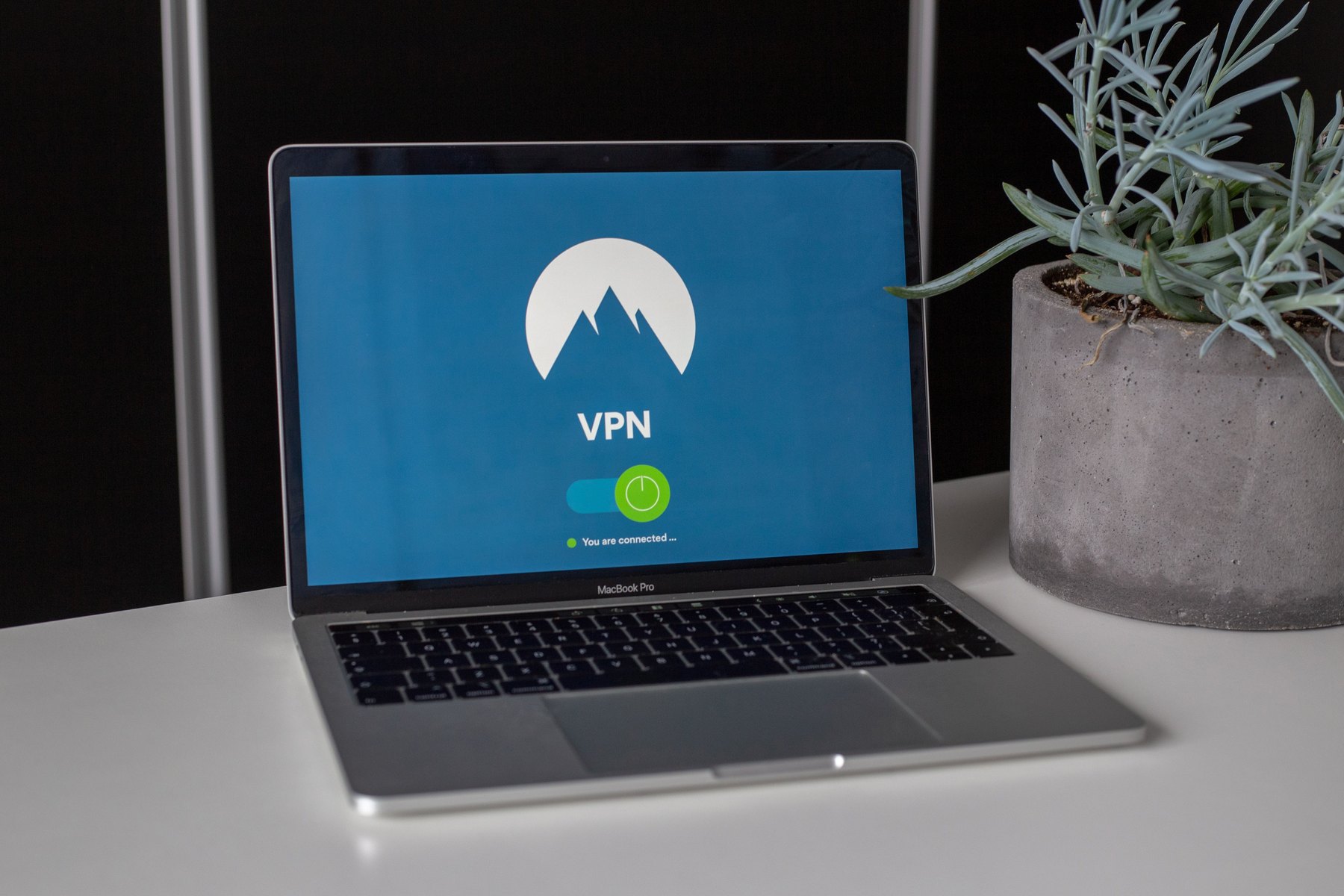
If you only use your home network and you already have strong account security, a VPN may be optional. It becomes more valuable when your routine includes:
- Logging into your bank, credit union, or credit card account while traveling.
- Checking loan balances or making payments on shared Wi-Fi.
- Uploading documents for a mortgage, auto loan, or personal loan application.
- Using gig work or freelance platforms on the go.
Quick decision rule
- If you use public Wi-Fi weekly: Consider a VPN plus MFA on financial accounts.
- If you travel often: Consider installing a VPN on all devices and your router.
- If you only use cellular data or trusted home Wi-Fi: A VPN may be less urgent, but still useful for privacy.
How to setup a VPN: pick the right type for your device
There are three common ways to use a VPN. The best choice depends on how many devices you have and how much control you want.
| Setup type | Best for | What you do | Main drawback |
|---|---|---|---|
| VPN app | Most people | Install provider app on each device | Must install and manage per device |
| Built-in VPN (manual) | Work devices, advanced users | Enter server, protocol, and login in system settings | More steps, easier to misconfigure |
| Router VPN | Whole-home coverage | Configure VPN on router so all devices use it | More technical, may slow speeds, not all routers support it |
What to compare when choosing a VPN provider
VPNs vary a lot. Instead of focusing on marketing claims, compare practical factors that affect cost, speed, and privacy.
Provider checklist
- Total cost: monthly vs annual pricing, renewal price, and any extra device fees.
- Number of devices: how many simultaneous connections are included.
- Protocols: look for modern options like WireGuard or well-supported OpenVPN.
- Server locations: more locations can help with performance and travel needs.
- Logging and privacy policy: read what data is collected and how long it is kept.
- Kill switch: can block traffic if the VPN drops, helpful on public Wi-Fi.
- Support and ease of use: clear apps, good help docs, and responsive support.
- Compatibility: Windows, macOS, iOS, Android, Linux, and router support.
Named VPN options to compare (examples)
These are recognizable providers you can compare side by side. Availability and features can change, so verify current details on each provider’s site.
| Option | Best fit | What to compare | Main drawback |
|---|---|---|---|
| NordVPN | All-around use | Device limit, protocol support, renewal pricing | Long-term plans can renew higher, check terms |
| ExpressVPN | Ease of use and travel | Speed on your networks, router support | Often priced higher than many alternatives |
| Surfshark | Households with many devices | Simultaneous connections, app usability | Performance can vary by server, test locations |
| Proton VPN | Privacy-focused users | Policy details, paid vs free tier limits | Free tiers may have fewer locations or slower speeds |
| Mullvad | Minimal account data | Payment options, app features, server coverage | Fewer “bundle” extras, interface may feel basic |
| Private Internet Access (PIA) | Customization and settings | Advanced controls, device support | More settings can mean more complexity |
Step by step: setup on iPhone and iPad (iOS)
Option A: Use the provider app (simplest)
- Download the VPN app from the App Store.
- Create an account or sign in.
- Allow the VPN configuration when prompted.
- Tap Connect, then choose a location if needed.
- Confirm the VPN icon appears in the status area.
Option B: Manual setup (when you have specific settings)
- Go to Settings > General > VPN & Device Management > VPN.
- Tap Add VPN Configuration.
- Choose the type (often IKEv2 or IPsec depending on your provider).
- Enter server, remote ID, username, and password provided by your VPN service.
- Save, then toggle VPN on.
Step by step: setup on Android
Option A: Use the provider app
- Install the VPN app from Google Play.
- Sign in and follow prompts to create a VPN profile.
- Tap Connect and select a server location if desired.
- Confirm the key or VPN icon appears in your status bar.
Option B: Manual VPN in Android settings
- Open Settings > Network and Internet > VPN (path may vary by phone).
- Tap Add VPN.
- Enter the server address and VPN type provided by your service.
- Save, then connect and enter your credentials.
Step by step: setup on Windows 10 and Windows 11
Option A: Use the provider app
- Download the VPN app from the provider website or Microsoft Store.
- Sign in.
- Choose a server location and click Connect.
- Turn on features like a kill switch if offered.
Option B: Add a VPN connection in Windows settings
- Go to Settings > Network & Internet > VPN.
- Click Add VPN.
- Select Windows (built-in) as the provider.
- Enter the server name or address and VPN type (as provided by your VPN service).
- Save, then connect from the VPN menu.
Step by step: setup on Mac (macOS)
Option A: Use the provider app
- Install the VPN app from the provider site or Mac App Store.
- Sign in and allow permissions.
- Select a location and connect.
Option B: Add a VPN in macOS network settings
- Go to System Settings (or System Preferences) > Network.
- Click Add Service (or the plus button) and choose VPN.
- Select the VPN type your provider supports (often IKEv2).
- Enter server address, account name, and authentication settings.
- Save and connect.
Step by step: setup on a router (whole-home VPN)
Router setup can protect devices that do not support VPN apps well, like smart TVs or game consoles. It can also simplify coverage for a household.
Before you start: confirm compatibility
- Check whether your router supports VPN client mode. Many stock ISP routers do not.
- Confirm your VPN provider supports router configurations and provides setup files or instructions.
- Plan for performance changes. Encrypting traffic can reduce speeds, especially on older routers.
General router setup steps (varies by model)
- Log into your router admin page (often via a local IP address).
- Find VPN settings (may be under Advanced, WAN, or Security).
- Upload configuration files or enter server details from your VPN provider.
- Save and connect.
- Test from a device on your Wi-Fi to confirm the VPN is active.
Practical tip for households
If only one person needs a VPN for banking on the go, an app on that person’s phone may be simpler than a router setup. If everyone uses public Wi-Fi or you have many devices, router setup can be worth the effort.
How to test if your VPN is working
- Check IP address change: Search “what is my IP” before and after connecting. The location should change to the VPN server area.
- Confirm the VPN status: Look for the VPN indicator on your device.
- Test on public Wi-Fi: Connect at a coffee shop and verify the VPN connects automatically if you enable auto-connect.
- Check for leaks: Many VPN providers offer leak test pages. Use them to check DNS and WebRTC settings.
Common VPN problems and fixes
VPN connects but the internet is slow
- Switch to a closer server location.
- Try a different protocol (for example, WireGuard vs OpenVPN) if your provider supports it.
- Restart the device and router.
- Disable always-on VPN temporarily to test baseline speed.
Banking site blocks access or triggers extra verification
- Try a different server location in your country.
- Use split tunneling if available so only certain apps use the VPN.
- Expect extra login checks. Some banks flag unfamiliar IP addresses as a fraud prevention step.
VPN drops on mobile
- Enable the kill switch if offered.
- Turn on auto-connect on untrusted Wi-Fi networks.
- Check battery optimization settings that may be restricting the VPN app.
Cost planning: what VPN spending looks like with real numbers
A VPN is usually a subscription. The right budget depends on how often you use it and how many devices you need to cover. Here are three sample monthly budgets that add up cleanly. Replace the numbers with current prices you find.
| Scenario | Monthly VPN budget | Who it fits | How to keep costs controlled |
|---|---|---|---|
| Basic protection | $5 | One person, phone and laptop | Compare annual plans vs monthly, watch renewal pricing |
| Household coverage | $12 | 2 to 5 people, many devices | Prioritize device limits and router support |
| Travel heavy | $20 | Frequent travel, needs consistent performance | Pay for reliability, test servers you actually use |
Decision rules by timeline
- Under 1 year: If you are testing a VPN, consider monthly billing until you confirm speed and compatibility with your bank and work tools.
- 1 to 3 years: If you use a VPN weekly, compare annual plans, but confirm renewal price and cancellation terms.
- 3 to 7 years: Re-evaluate yearly. Providers change ownership, policies, and performance. Avoid paying far ahead unless you are confident you will keep using it.
- 7+ years: Treat as a recurring utility cost. Focus on consistent security habits: MFA, device updates, and credit monitoring, not just the VPN.
Security habits that pair well with a VPN
A VPN works best as part of a broader routine, especially when money is involved.
- Use multi factor authentication: Prefer authenticator apps over SMS when possible.
- Keep devices updated: Install OS and browser updates promptly.
- Use a password manager: Unique passwords for banking and email reduce account takeover risk.
- Monitor accounts: Set transaction alerts for bank and credit card accounts.
- Check your credit reports: Review regularly for unfamiliar accounts.
Helpful resources for identity and account protection
- FTC consumer guidance on scams and identity theft
- CFPB resources on banking and consumer protections
- AnnualCreditReport.com to access your credit reports
Final setup checklist
- Choose a VPN type: app, manual, or router.
- Compare total cost, device limits, protocols, and privacy policy.
- Install and connect, then confirm your IP changes.
- Turn on auto-connect for untrusted Wi-Fi and enable a kill switch if available.
- Test your banking and bill pay sites to make sure logins work smoothly.
- Keep MFA on financial accounts and review credit reports periodically.
Once you have a VPN set up across your devices, you can use public Wi-Fi with more confidence while you handle everyday financial tasks like checking balances, paying bills, or uploading documents.


